Manufacturing: Difference between revisions
Jump to navigation
Jump to search
mNo edit summary |
No edit summary |
||
| (2 intermediate revisions by the same user not shown) | |||
| Line 1: | Line 1: | ||
{| class="wikitable" width=" | {| class="wikitable" width="20%" cellpadding="8" | ||
|- | |- | ||
! PRS Version | |||
! Version | |||
| {{{version|Not specified}}} | | {{{version|Not specified}}} | ||
|} | |} | ||
= Showcase = | = Showcase = | ||
{{#ask: [[ | {{#ask: [[Category:Manufacturing]] | ||
|?Has title | |||
|?Has caption | |||
|titleproperty=Has title | |||
|captionproperty=Has caption | |||
|format=carousel | |format=carousel | ||
|limit=10 | |limit=10 | ||
|height= | |height=800px | ||
|slick-dots=1 | |slick-dots=1 | ||
|slick-autoplay=0 | |slick-autoplay=0 | ||
}} | }} | ||
= Manufacturing Configuration = | |||
{{TrainingVideo | |||
| | | title = Design Management - Factory and Manufacturing Section Creation | ||
| module = Design Management | |||
| duration = 2:51 | |||
| updated = April 2026 | |||
| summary = How to configure a factory in PRS by creating the factory record, naming it, adding a thumbnail, and defining its manufacturing sections with staff counts and time activities. | |||
| videofile = 4. PRS - Design Management - Factory and Manufacturing Section Creation.mp4 | |||
| transcript = | |||
<div class="ts-entry" data-time="0"><span class="ts-time">0:00</span> <span class="ts-text">Opening Factory Settings under Manufacturing Setup.</span></div> | |||
<div class="ts-entry" data-time="19"><span class="ts-time">0:19</span> <span class="ts-text">Creating a new factory with name and thumbnail.</span></div> | |||
<div class="ts-entry" data-time="42"><span class="ts-time">0:42</span> <span class="ts-text">Manufacturing sections are steps within the factory.</span></div> | |||
<div class="ts-entry" data-time="58"><span class="ts-time">0:58</span> <span class="ts-text">Adding sections, staff counts, and time activities.</span></div> | |||
<div class="ts-entry" data-time="125"><span class="ts-time">2:05</span> <span class="ts-text">Saving and previewing the new factory layout.</span></div> | |||
<div class="ts-entry" data-time="154"><span class="ts-time">2:34</span> <span class="ts-text">Adding additional factories using the same process.</span></div> | |||
| keypoints =<br> | |||
* Factory Settings lives under Manufacturing Status > Setup. | |||
* A factory can have a name, thumbnail, and any number of sections. | |||
* Sections represent the sequential steps of your manufacturing process. | |||
* Each section has a staff count and a time activity. | |||
* Time activities are pre-configured in Human Resources. | |||
* Multiple factories can be added for businesses with more than one site. | |||
| seealso =<br> | |||
* [[Design Management]] | * [[Design Management]] | ||
* [[Manufacturing Status]] | * [[Manufacturing Status]] | ||
| Line 30: | Line 48: | ||
* [[Factory Floor]] | * [[Factory Floor]] | ||
* [[Reports]] | * [[Reports]] | ||
}} | |||
Latest revision as of 01:51, 24 April 2026
| PRS Version | Not specified |
|---|
Showcase

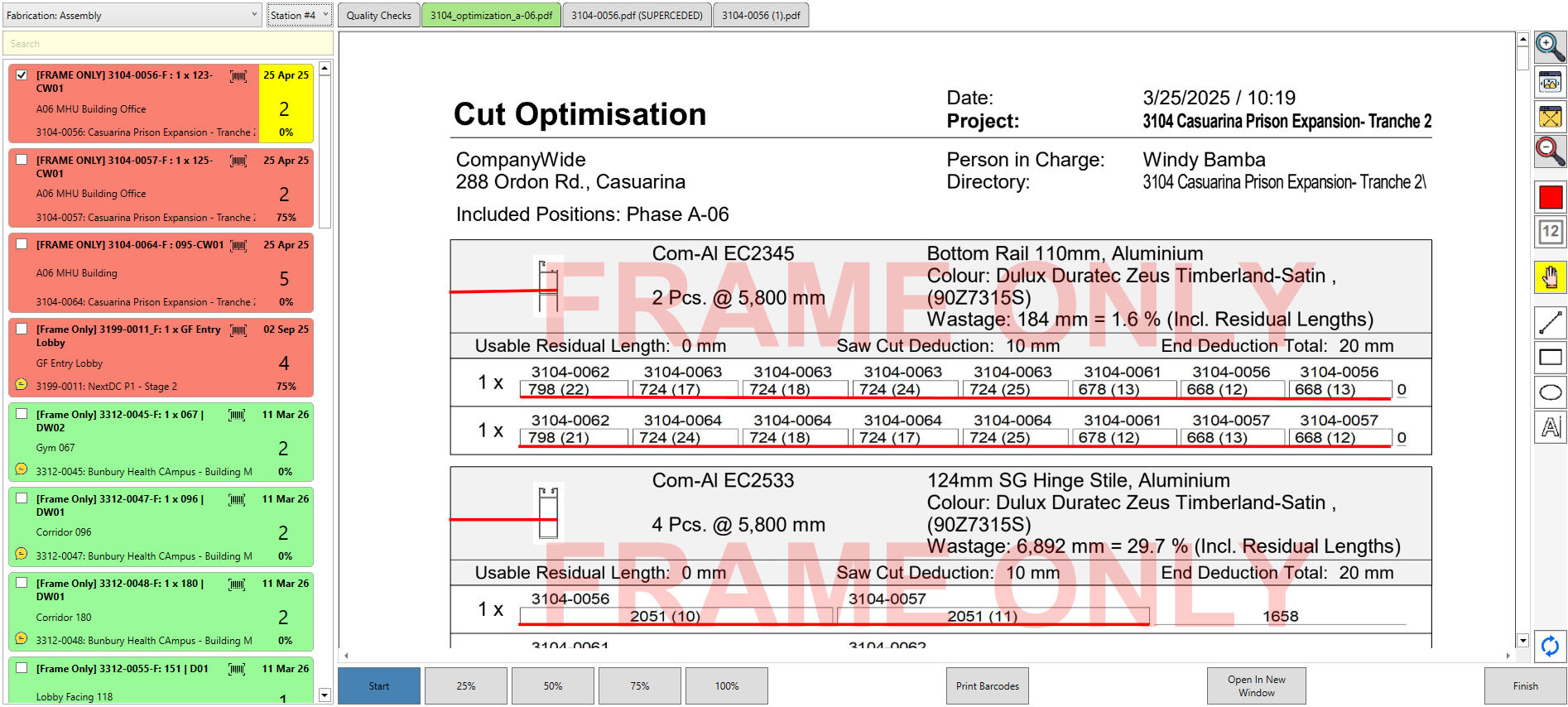
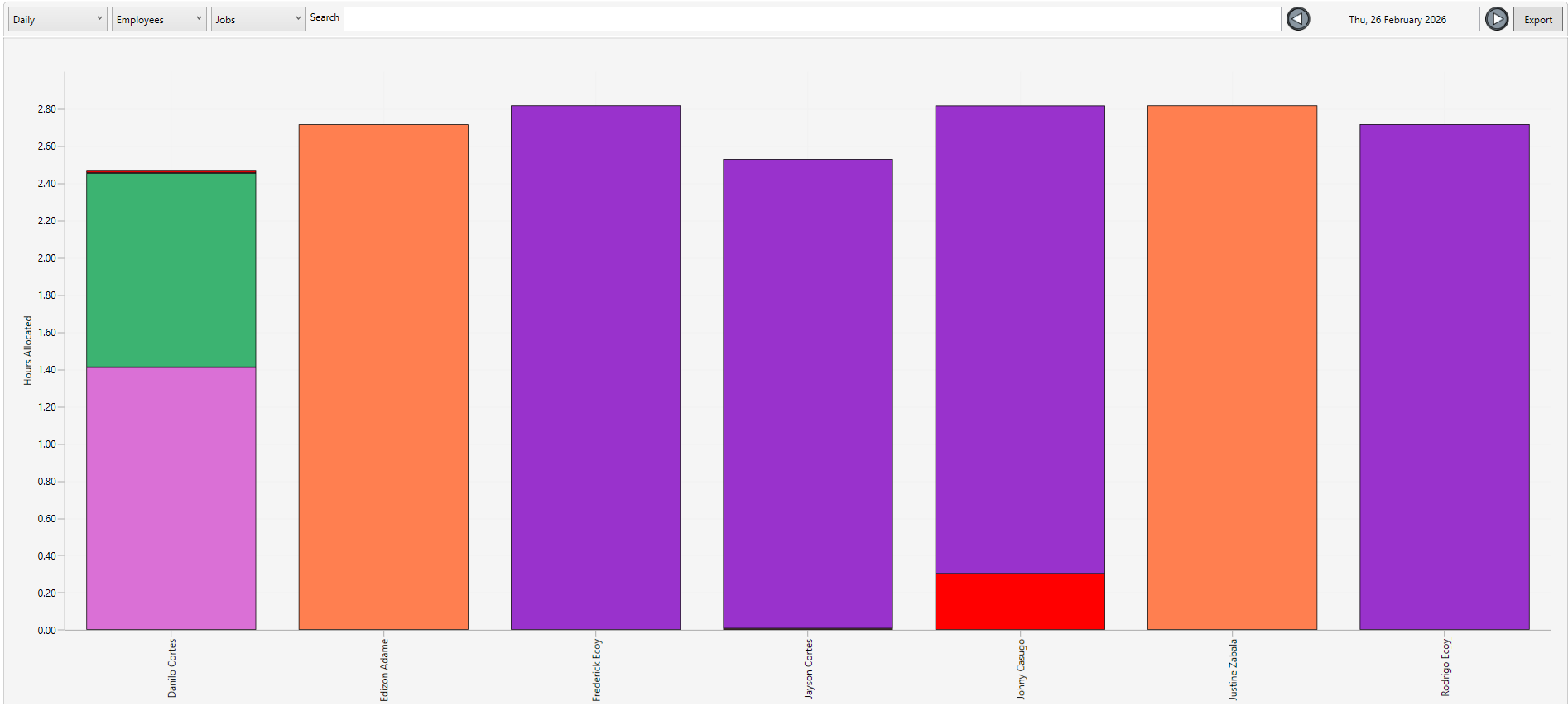
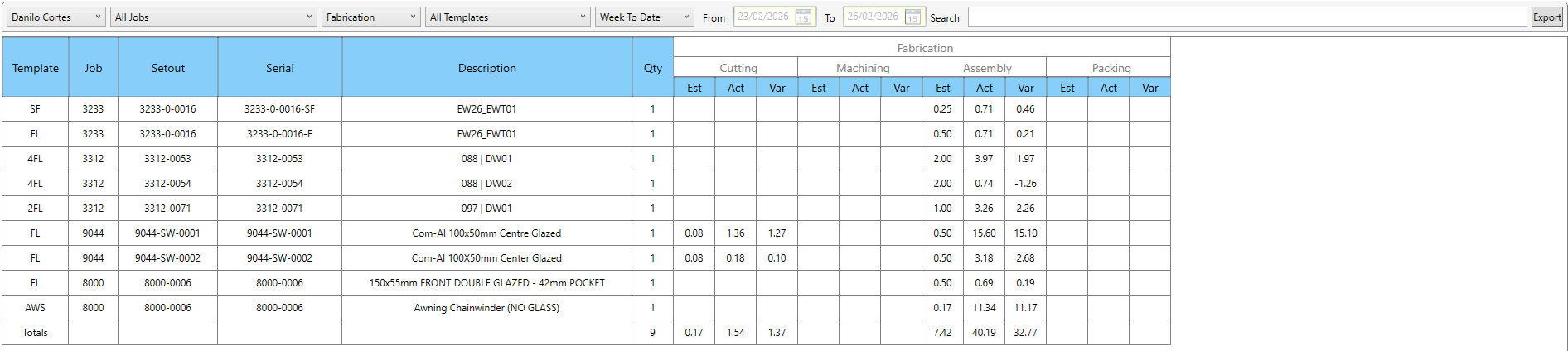
Manufacturing Configuration
Overview
How to configure a factory in PRS by creating the factory record, naming it, adding a thumbnail, and defining its manufacturing sections with staff counts and time activities.
✓ Key Points
- Factory Settings lives under Manufacturing Status > Setup.
- A factory can have a name, thumbnail, and any number of sections.
- Sections represent the sequential steps of your manufacturing process.
- Each section has a staff count and a time activity.
- Time activities are pre-configured in Human Resources.
- Multiple factories can be added for businesses with more than one site.
📋 Transcript Click any line to jump
0:00 Opening Factory Settings under Manufacturing Setup.
0:19 Creating a new factory with name and thumbnail.
0:42 Manufacturing sections are steps within the factory.
0:58 Adding sections, staff counts, and time activities.
2:05 Saving and previewing the new factory layout.
2:34 Adding additional factories using the same process.