Issuing Stock: Difference between revisions
Jump to navigation
Jump to search
| Line 21: | Line 21: | ||
==== Desktop ==== | ==== Desktop ==== | ||
===== Overview ===== | |||
* Navigate to Logistics → Site Requisitions (name could be changed in the future) | |||
* Create a new Requisition or select an existing one from the list. Filter the list as needed using the dropdown menu at the top of the list | |||
* The items (Requisition Items) on the Requisition are displayed in the middle grid, and will refresh when selecting a different requisition | |||
* Add or edit items in the list as desired | |||
* When adding, first select the product required, then double click to edit and change details like quantity and the specific stock holding to take from | |||
* Ensure that '''Quantity''' and '''Location''' are filled in for each item[[File:2.png|frameless|1470x1470px]] | |||
===== Progressing Requisition Status ===== | |||
* A Requisition needs to go through 3 stages to be complete | |||
# Filled - when all the required items have been added to the requisition | |||
# Delivered or Taken By an Employee - when the items have been taken from stock | |||
# Stock Holdings updated - when the corresponding transactions have been completed. | |||
#* Each item must have a holding to issue from, otherwise PRS will be unable to generate stock movements | |||
* Use the buttons in the bottom right of the screen to progress through the stages | |||
[[File:Requi buttons.png|frameless|449x449px]] | |||
==== Mobile ==== | ==== Mobile ==== | ||
Revision as of 08:35, 3 February 2023
Overview
There are two main ways to issue stock on PRS:
- Issue stock directly from a stock location
- Issue via Requisitions (AKA picking lists)
Issuing from a stock location
Desktop
- Navigate to Product Management → Stock Locations
- Choose a stock location to issue items from. The current holdings (stock) is displayed on the right hand side of the screen

- Select a holding to issue from → click the red Issue button

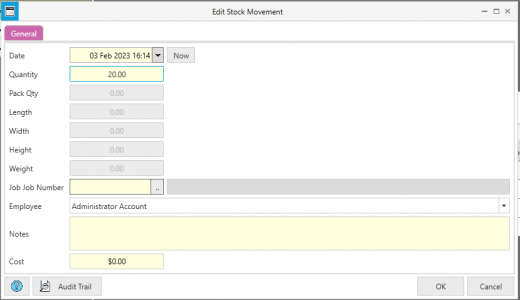
- Fill in details such as Quantity, Employee, Job and Notes as required and press OK. The transaction will now be reflected in Stock Movements


Mobile
Issuing via Requisitions
Desktop
Overview
- Navigate to Logistics → Site Requisitions (name could be changed in the future)
- Create a new Requisition or select an existing one from the list. Filter the list as needed using the dropdown menu at the top of the list
- The items (Requisition Items) on the Requisition are displayed in the middle grid, and will refresh when selecting a different requisition
- Add or edit items in the list as desired
- When adding, first select the product required, then double click to edit and change details like quantity and the specific stock holding to take from
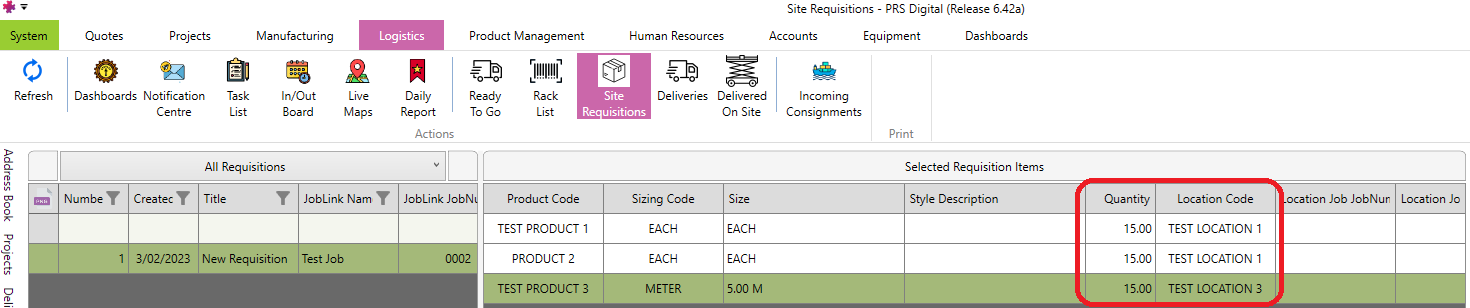
- Ensure that Quantity and Location are filled in for each item

Progressing Requisition Status
- A Requisition needs to go through 3 stages to be complete
- Filled - when all the required items have been added to the requisition
- Delivered or Taken By an Employee - when the items have been taken from stock
- Stock Holdings updated - when the corresponding transactions have been completed.
- Each item must have a holding to issue from, otherwise PRS will be unable to generate stock movements
- Use the buttons in the bottom right of the screen to progress through the stages
