Configuration and Navigation
Jump to navigation
Jump to search
| PRS Version | Not specified |
|---|
Showcase





Overview
How to move around PRS — tabs, modules, quick access, and the sidebar — and how to configure grid views with sorting, filtering, split panels, and column selection so each user sees the data they need.
✓ Key Points
- Navigation is built from tabs, modules, sub-modules, quick access, and sidebar.
- The Setup menu is context-sensitive to the module currently open.
- Data is shown in a grid view that can be sorted and filtered.
- Screen-level filters are temporary; managed filters persist across PRS.
- Panels can be moved, collapsed, and resized to suit each user.
- Columns themselves are configurable per user, including custom widths.
📋 Transcript Click any line to jump
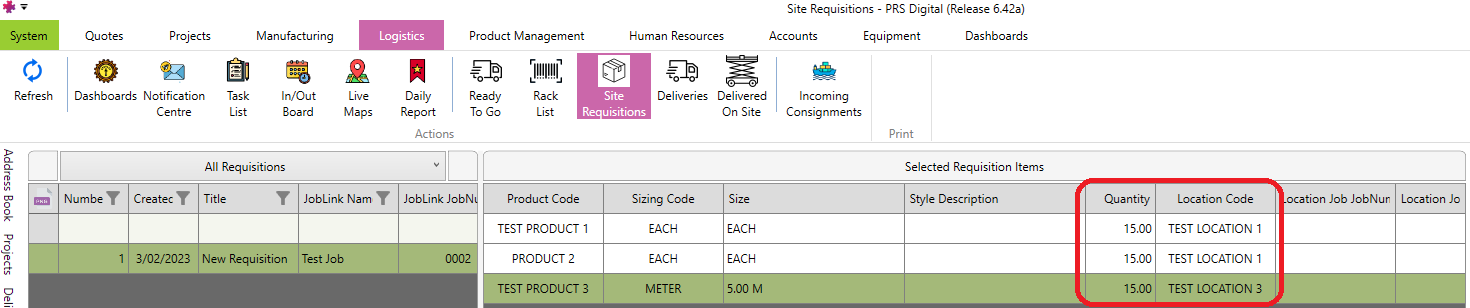
0:00 Tabs group PRS modules into functional categories.
0:27 Modules contain deeper sub-module layers of functionality.
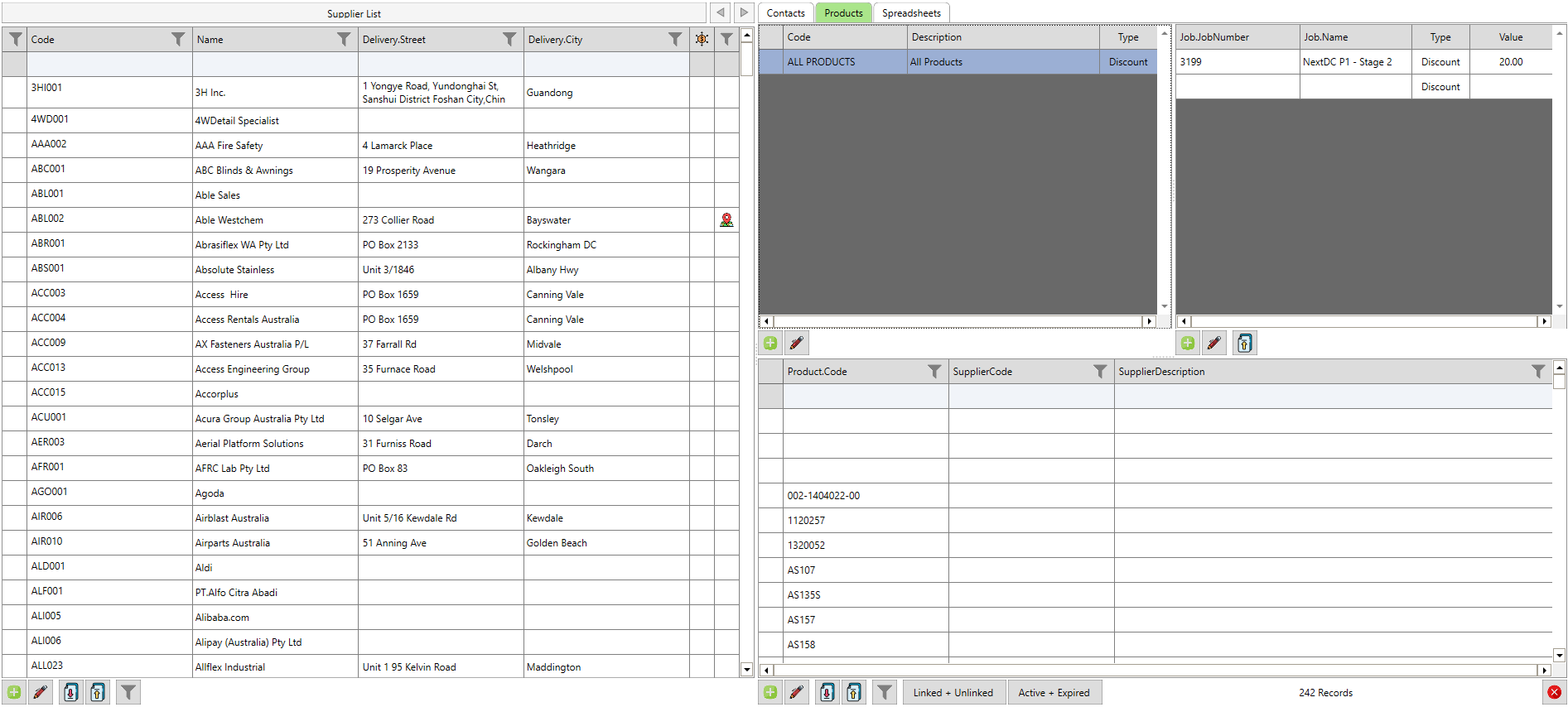
2:30 Grid view shows data in sortable rows and columns.
3:18 Filtering data by checkbox, user, or date.
4:10 Managed filters persist across every screen in PRS.
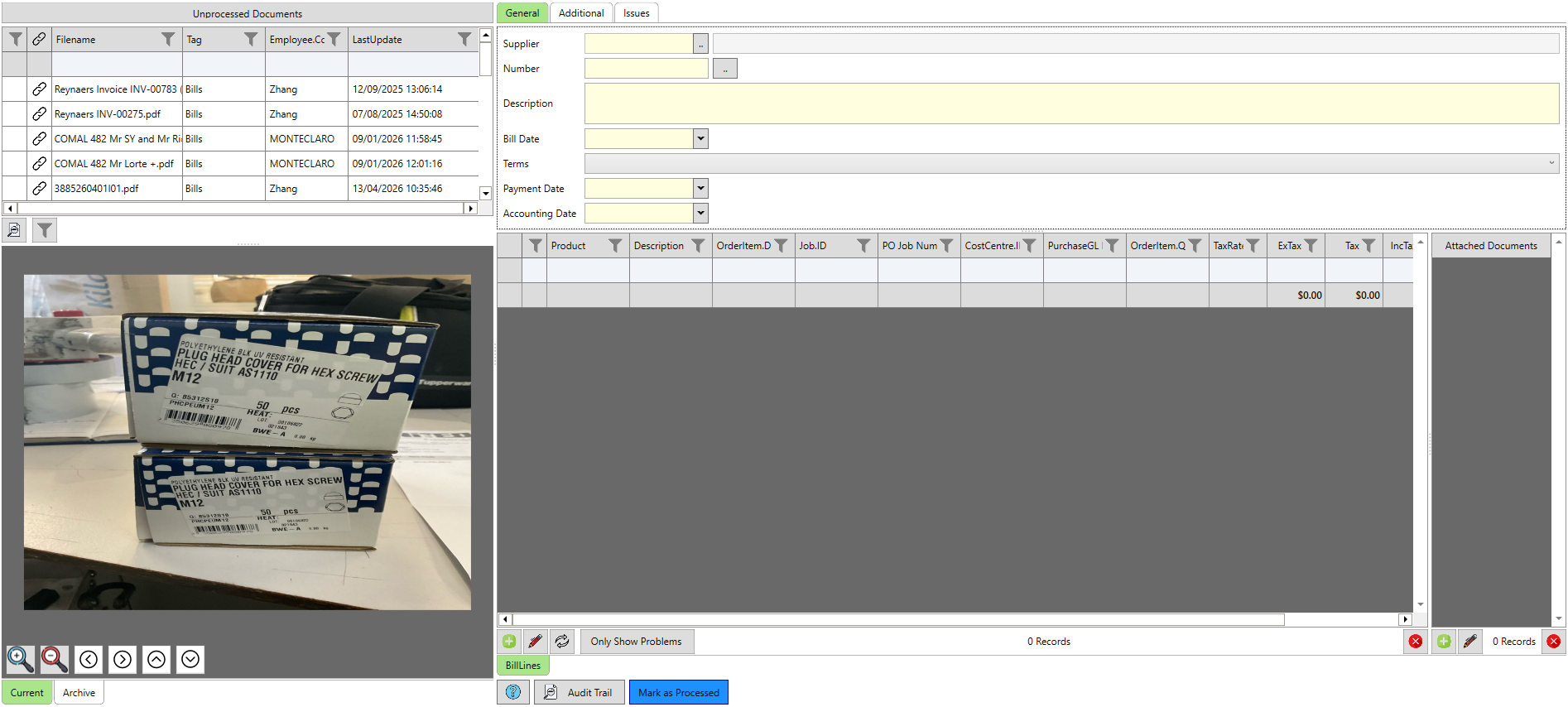
5:06 Split-panel navigation and configurable column widths.