Configuration and Navigation: Difference between revisions
Jump to navigation
Jump to search
m Adding area for overview video of these modules |
No edit summary |
||
| Line 1: | Line 1: | ||
{| class="wikitable" width="20%" cellpadding="8" | |||
|- | |||
! PRS Version | |||
| {{{version|Not specified}}} | |||
|} | |||
{{TrainingVideo | |||
| title = Configuration and Navigation | |||
| module = Configuration and Navigation | |||
| duration = 6:42 | |||
| updated = April 2026 | |||
| summary = How to move around PRS — tabs, modules, quick access, and the sidebar — and how to configure grid views with sorting, filtering, split panels, and column selection so each user sees the data they need. | |||
| videofile = Configuration and Navigation.mp4 | |||
| transcript = | |||
<div class="ts-entry" data-time="0"><span class="ts-time">0:00</span> <span class="ts-text">Tabs group PRS modules into functional categories.</span></div> | |||
<div class="ts-entry" data-time="27"><span class="ts-time">0:27</span> <span class="ts-text">Modules contain deeper sub-module layers of functionality.</span></div> | |||
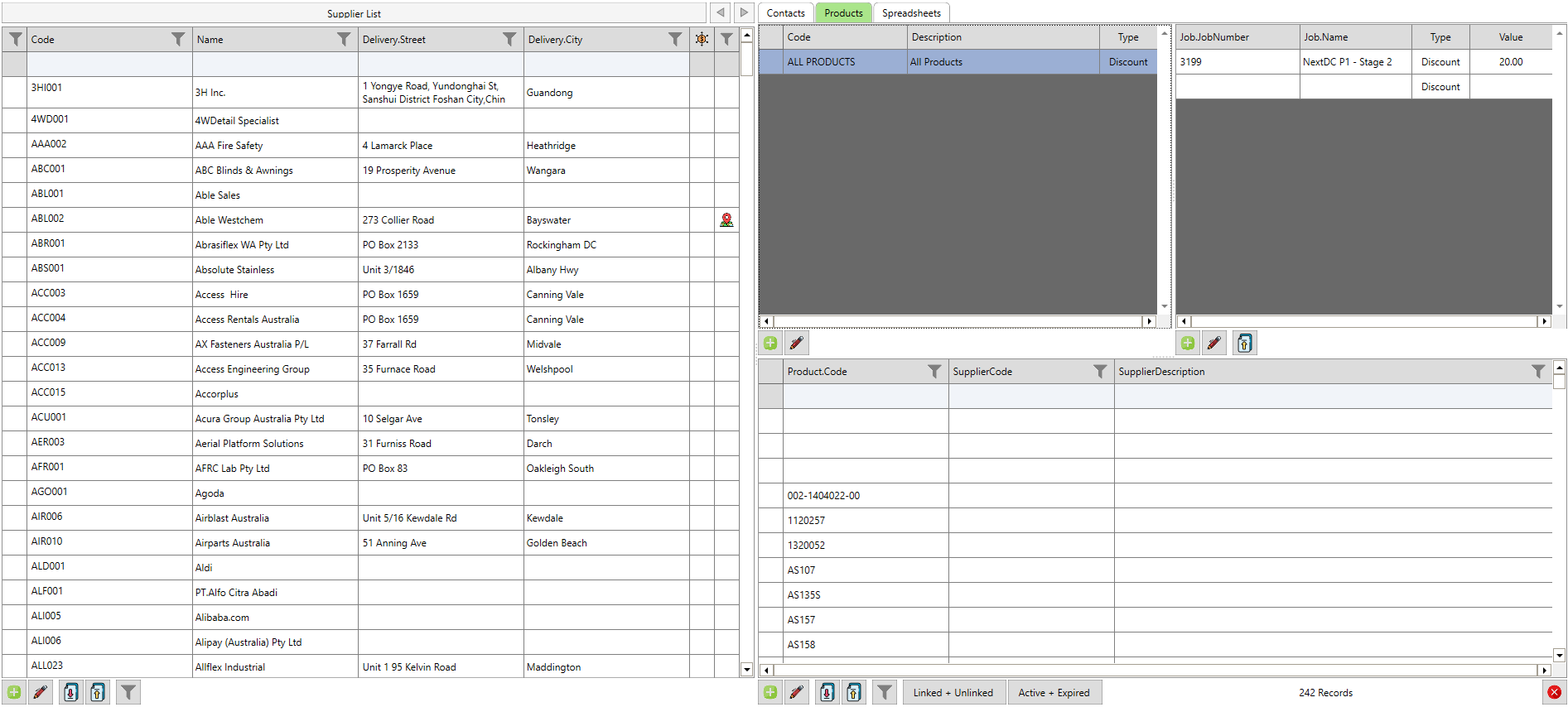
<div class="ts-entry" data-time="150"><span class="ts-time">2:30</span> <span class="ts-text">Grid view shows data in sortable rows and columns.</span></div> | |||
<div class="ts-entry" data-time="198"><span class="ts-time">3:18</span> <span class="ts-text">Filtering data by checkbox, user, or date.</span></div> | |||
<div class="ts-entry" data-time="250"><span class="ts-time">4:10</span> <span class="ts-text">Managed filters persist across every screen in PRS.</span></div> | |||
<div class="ts-entry" data-time="306"><span class="ts-time">5:06</span> <span class="ts-text">Split-panel navigation and configurable column widths.</span></div> | |||
| keypoints =<br> | |||
* Navigation is built from tabs, modules, sub-modules, quick access, and sidebar. | |||
* The Setup menu is context-sensitive to the module currently open. | |||
* Data is shown in a grid view that can be sorted and filtered. | |||
* Screen-level filters are temporary; managed filters persist across PRS. | |||
* Panels can be moved, collapsed, and resized to suit each user. | |||
* Columns themselves are configurable per user, including custom widths. | |||
| seealso =<br> | |||
* [[Related Page One]] | |||
* [[Related Page Two]] | |||
}} | |||
{| class="wikitable" width="40%" cellpadding="8" | {| class="wikitable" width="40%" cellpadding="8" | ||
|- | |- | ||
Revision as of 08:50, 23 April 2026
| PRS Version | Not specified |
|---|
Overview
How to move around PRS — tabs, modules, quick access, and the sidebar — and how to configure grid views with sorting, filtering, split panels, and column selection so each user sees the data they need.
✓ Key Points
- Navigation is built from tabs, modules, sub-modules, quick access, and sidebar.
- The Setup menu is context-sensitive to the module currently open.
- Data is shown in a grid view that can be sorted and filtered.
- Screen-level filters are temporary; managed filters persist across PRS.
- Panels can be moved, collapsed, and resized to suit each user.
- Columns themselves are configurable per user, including custom widths.
📋 Transcript Click any line to jump
0:00 Tabs group PRS modules into functional categories.
0:27 Modules contain deeper sub-module layers of functionality.
2:30 Grid view shows data in sortable rows and columns.
3:18 Filtering data by checkbox, user, or date.
4:10 Managed filters persist across every screen in PRS.
5:06 Split-panel navigation and configurable column widths.
| Version | Not specified |
|---|
Overview
No summary provided.
Showcase





| Training Video | |
|---|---|
| Transcript | No transcript available. |
| See Also |